3. What I did with the alphabet.
Get a font off your PC - word of caution!... don't use a font that came with your wordprocessor - they're copyrighted....:-)))) so how to circumvent this little problem... there are thousands of freeware fonts with no copyright on them (stated categorically) for you to offload off the internet... happy hunting. Type this font out on your wordprocessor in nice big letters (about 130 point size) (one at a time). After each letter press ALT-PrintScreen (this will capture the "picture" of the letter. Now go to your "Paint" utility (comes standard with Windows 95/98) and once in it - click on Edit, Paste. Use the select feature in Paint (square dashed rectangle icon) to put a frame just around the letter and click on Edit, Cut. Now click on New, and do not save the image when prompted to do so, When the new small white block appears, click on Edit, Paste and there's your letter. Now click on Save As, and save the letter as a.bmp or b.bmp etc. This letter can now be pulled into the Designer software and is ready for digitising (meaning you put down the stitches - don't try autotrace!!! It doesn't do satin stitches... In the Designer you first have to state the size of the new design... I used 50x50 for my letters... ask me why I didn't go for smaller or bigger....:-)) Once done you can enlarge the design x 2 which gives you the 78 x 78 that my letters are. (OK, if you insist on asking about the size.... I know 'cause after 2 years of various flops etc the penny dropped!!! there is a link between the original size of the design (picture) and the final sewn product... keep them as close in size as possible!
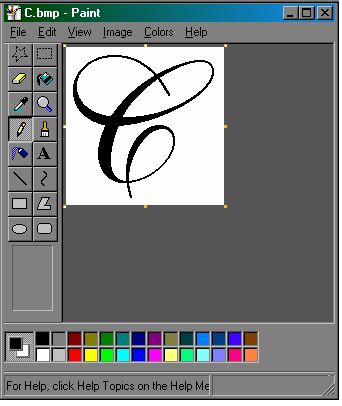
Above: What the letter looked like in Windows Paint.
Copyright © 2000 by Bernina of America, Inc.
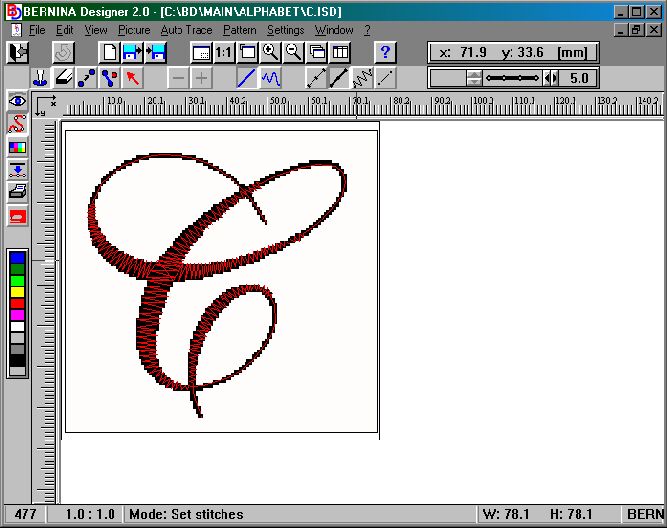
What it looks like in the Bernina Designer Software after I put down the stitches (with the "View image" still ticked)
Copyright © 2000 by Bernina of America, Inc.
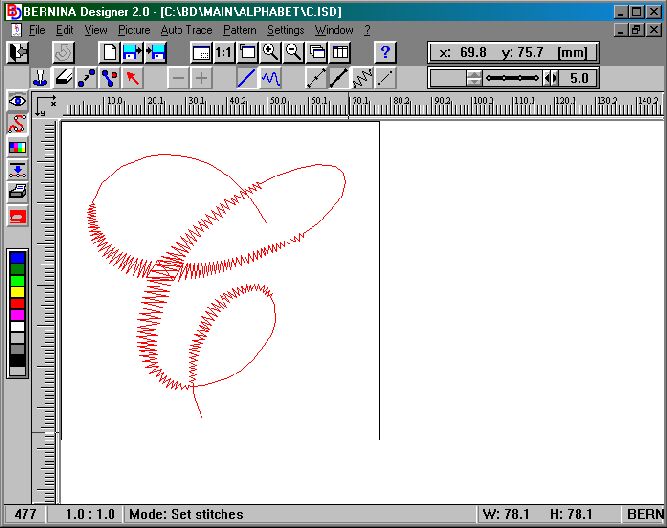
And above, what it looks like with the "View Image" no longer ticked. By the way, the "View Image is the last option on the "View" menu. I switch it off and on several times during the digitising process to get a clearer picture of how the design is developing!