



Table of Contents
Preface
What is a Web Services?
Installation
A web service implementation
Create a more complicated web service
Axis tools
Summary
References
Preface
Web Services is a term that is being discussed quite a lot lately. A web service is nothing more than a method call that uses XML, a client program and a server that exchange data via XML, or SOAP. A client calls a web service by sending it a message in XML and awaits for a response in XML, too. Because the communication takes place with XML messages, web services are platform or OS or programming language independent, e.g. Windows applications may exchange data with UNIX applications and vice versa.
In the following we 'll see how we can convert a simple Java "Hello World" application to a web service by using the Apache Axis tool.
What is a Web Service?
A web service can be defined as a software package with the following characteristics:
- It can be accessed via a SOAP (Simple Object Access Protocol) interface;
- Its interface is described with a WSDL (Web Service Description Language) document.
SOAP is an extended communications XML protocol and consists the base of web services. It contains a simple and consistent mechanism that allows an application to send an XML message to another application. A SOAP message is transmitted in one direction from a SOAP transmitter to a SOAP receiver. SOAP is a high level protocol that only defines the message structure and some message processing rules. It is independent of the lower communications protocols, so SOAP messages can be transmistted via HTTP, JMS or E-mail.
WSDL is itself an XML document that contains a set of definitions that describe a web service. It defines all the information that is needed to access and use the web service. A WSDL document describes what a web service does, how it communicates and where it is located. In other words, a WSDL document describes the public interface of the web service, i.e. its public methods that are available to the clients of the web service and the signature of each method.
Apart from the above two basic protocols, you might need a third one, UDDI (Universal Description, Discovery, and Integration) which is an indexing service that allows client programs to locate the web service and its methods.
Previously, we referred to SOAP as a way to communicate with a web service. Another way is via XML-RPC protocol. Protocol XML-RPC uses XML for Remote Procedure Calls. Requests are encoded in XML and are send via HTTP POST; replies are embedded in the body of the HTTP response. In other words:
XML-RPC = HTTP + XML + Remote Procedure Calls.
An example of using an XML-RPC request is shown below:
|
<?xml version="1.0"
encoding="utf-8"?> |
The request consists of a simple element <methodCall> which defines the method name (sayHelloTo) to be called and any parameters (name).
A sample XML-RPC response for this web service follows:
|
<?xml version="1.0"
encoding="utf-8"?> |
The response consists of a single element <methodReponse> which defines the return value. In our case, it returns a string.
XML-RPC protocol is simpler than SOAP, hence the simplest way to start learning web services. The official specification of XML-RPC protocol is available in XML-RPC.com. There are dozens of XML-RPC implementations in Perl, Python, Java, and Ruby.
The respective request and response SOAP samples are shown below :
SOAP request sample:
<?xml version='1.0' encoding='UTF-8'?>
<SOAP-ENV:Envelope
xmlns:SOAP-ENV="http://www.w3.org/2001/09/soap-envelope"
xmlns:xsi="http://www.w3.org/2001/XMLSchema-instance"
xmlns:xsd="http://www.w3.org/2001/XMLSchema">
<SOAP-ENV:Body>
<ns1:sayHelloTo
xmlns:ns1="urn:examples:helloservice"
SOAP-ENV:encodingStyle=" http://www.w3.org/2001/09/soap-encoding
<name xsi:type="xsd:string">John</name>
</ns1:sayHelloTo>
</SOAP-ENV:Body>
</SOAP-ENV:Envelope>
As you can see, a SOAP request is more complicated than a XML-RPC request and makes use of XML namespaces and XML. However, its body contains the called method (sayHelloTo) and the parameter (John).
Respectively, the SOAP response returns the return string:
<?xml version='1.0' encoding='UTF-8'?>
<SOAP-ENV:Envelope
xmlns:SOAP-ENV="http://www.w3.org/2001/09/soap-envelope"
xmlns:xsi="http://www.w3.org/2001/XMLSchema-instance"
xmlns:xsd="http://www.w3.org/2001/XMLSchema">
<SOAP-ENV:Body>
<ns1:sayHelloToResponse
xmlns:ns1="urn:examples:helloservice"
SOAP-ENV:encodingStyle="http://www.w3.org/2001/09/soap-encoding">
<return xsi:type="xsd:string">Hi John, how are you?return>
</ns1:sayHelloToResponse>
</SOAP-ENV:Body>
</SOAP-ENV:Envelope>
SOAP protocol is in version 1.2 and consists of two parts. The 1st part describes the SOAP messaging framework and the envelope specification. The 2nd part defines the SOAP encoding rules, the SOAP-RPC specifications and the HTTP internetworking details.
Axis, or Apache EXtensible Interaction System, is a framework, or a SOAP engine, to create web service clients, servers, gateways etc. Due to its advanced design it offers speed, flexibility, stability, WSDL support, allows for component installations etc. Even though version 2.0 of Axis is out, which allows for better flexibility and ease of use, we are going to describe Axis1 in this article, returning back to describe Axis2 in a future article.
But, what are web services useful for? The most direct answer is that they allow for data exchange between different applications, written in different operating systems, different programming languages etc. And this communication can happen in a transparent way due to the global XML protocol. Other ways of communication and data exchange between different applications are:
➢ RMI – Remote Method Invocation which is supported only between Java applications
➢ CORBA - Common Object Request Broker Architecture of Object Management Group (OMG), that also allows communication between applications from different platforms; it is as slow as web services but more difficult to learn than web services.
➢ COM/DCOM – which is supported only between Microsoft applications.
In the following, we shall show how we can easily create a web service with Apache Axis and we ‘ll leave for the end of the article all those details you may need to work with web services.
Installation
We shall need the following tools for our example:
- Apache axis from http://ws.apache.org/axis/. Download it and just unzip it to a directory in your hard disk. Axis is a Simple Object Access Protocol (SOAP) implementation. As already mentioned, SOAP is used for data exchange in shared environments and is XML based. There are many SOAP implementations and one of them is Apache SOAP. Axis is an Apache project, but is not part of the SOAP project.
- JavaBeans Activation Framework (JAF – activation.jar) library from http://java.sun.com/products/javabeans/jaf/downloads/index.html
- JavaMail (mail.jar) from http://java.sun.com/products/javamail/downloads/index.html.
- Tomcat application server. Jakarta Tomcat is the most famous and widely used servlet container or application server. It can be downloaded from Jakarta's web site: http://jakarta.apache.org/tomcat. The most recent version, as of this writing, is 5.5. Tomcat accepts requests in port 8080. Refer to previous e-files issues to learn how to setup and run Tomcat.
Copy webapps folder from inside Axis installation to your Tomcat installation folder. An axis folder will be created inside Tomcat’s webapps. We shall develop web services inside that folder. Start (or restart) Tomcat, open a web browser and type http://localhost:8080/axis. If everything went OK, you ‘ll see Axis start page (Figure 1) (which may be a bit different depending on the Axis version you downloaded). Click on Validation hyperlink to navigate to Axis’ happy page and confirm that your installation is OK. This page will also be useful for debugging later on when you have problems with a web service.
Finally, type http://localhost:8080/axis/servlet/AxisServlet to see a list of all the installed web services or click on List – View the list of deployed Web services.
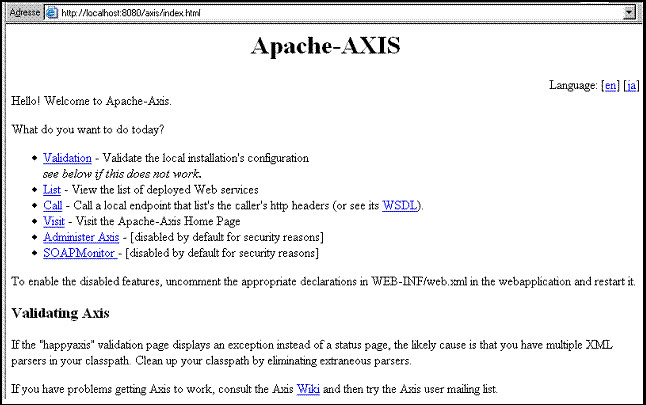
Figure 1 Apache Axis start page
A web service implementation
In the following we shall see how we can convert a simple Java HelloWorld like application to a web service using Apache Axis tool and then we 'll see a more complicated real example.
Create a simple web service
We shall follow these steps:
- Create the class that will become our web service;
- Install the class to the SOAP server;
- Create the client class that calls the web service
We could use any class to convert it to a web service, but it doesn’t matter how complicated our class is, as the procedure to follow is the same; hence we shall use the simplest possible class, HelloService (see List 1).
| List 1. HelloService.java |
|
public class HelloService { |
The simplest way to convert this class to a web service is to copy it inside [Tomcat installation path]\webapps\axis and rename HelloService.java to HelloService.jws. This is it! Type http://localhost:8080/axis/HelloService.jws to your favorite browser and you ‘ll come up with the following web page:
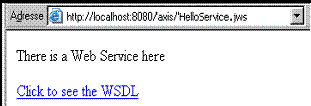
Figure 2 Your first web service
We ‘ve managed to convert method sayHelloTo() of HelloService class to a web service. As you can see, apache axis “hides” many of the details that are needed to create a web service. The only thing left is to write the client to call this web service.
If you open axis’ web.xml, inside Tomcat’s directory axis/WEB-INF/, you may find that extension .jws is being managed by axis and more specifically from AxisServlet class:
<servlet-mapping>
<servlet-name>AxisServlet</servlet-name>
<url-pattern>*.jws</url-pattern>
</servlet-mapping>
Clicking on Click to see the WSDL you can view the contents of WSDL file. In .wsdl you may find the following:
➔ The web services’ URL:
<wsdlsoap:address location="http://localhost:8080/axis/HelloService.jws"/>
➔ The typical input parameters:
<wsdl:message name="sayHelloToRequest">
<wsdl:part name="name" type="xsd:string"/>
</wsdl:message>
➔ The typical output parameters:
<wsdl:message name="sayHelloToResponse">
<wsdl:part name="sayHelloToReturn"
type="xsd:string"/>
</wsdl:message>
➔ The name of the web service as well as the actual input and output parameters:
<wsdl:portType name="HelloService">
<wsdl:operation name="sayHelloTo"
parameterOrder="name">
<wsdl:input
message="impl:sayHelloToRequest"
name="sayHelloToRequest"/>
<wsdl:output
message="impl:sayHelloToResponse"
name="sayHelloToResponse"/>
</wsdl:operation>
</wsdl:portType>
If the .wsdl file is available we can write a client program to use the client service. The available web services in the Internet count on this, e.g. Google provides many of its applications as web services. Google Web Service[1] APIs provide SOAP interfaces for many of its applications like e.g. searching via Google indexing service. With the help of SOAP and WSDL, Google provides client programs the possibility to access these services from a variety of platforms (e.g. Java, C# etc).
Let’s see what the method sayHelloTo() of HelloService web service returns. Type the following address to your browser http://localhost:8080/axis/HelloService.jws?method=sayHelloTo and see the result. This way, you make a call to the web service method sayHelloTo() without passing any parameters, as a result we get the following message:
Hi null, how are you?
To pass parameters, use the following address to your browser to see the response of Figure 3:
http://localhost:8080/axis/HelloService.jws?method=sayHelloTo&name=John
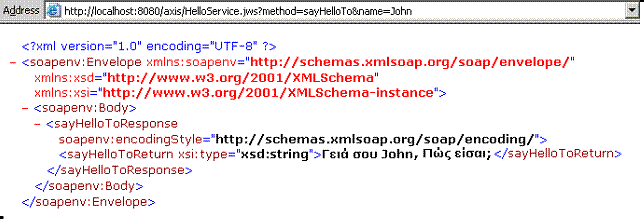
Figure 3 Call sayHelloTo() with parameters
We pass parameters to the method by using the character & and a name for the parameter (name) followed by = and a value (John). We could use any name for the parameter name instead of name. E.g. ?method=sayHelloTo&a=John is also valid. If we had more parameters we would separate them using &, e.g. ¶m1=John¶m2=... etc.
Time to write a client program to call the web service. This is shown in List 2. We shall need the file setclasspath.bat or setclasspath.sh from the next section "Axis tools".
| List 2. HelloClient.java |
1 import org.apache.axis.client.Call;
2 import org.apache.axis.client.Service;
|
Execute the program from a command prompt or a shell:
> setclasspath.bat
> java HelloClient John
Sent 'John', got 'Hi John, how are you?'
In lines 11 and 12 we create two objects of type Service and Call. These are JAX-RPC objects which are used to store metadata for the web service about to be called. In line 14 we set the URL of the web service we wish to call and which is the destination of the SOAP message that we send. In line 15 we set the name of the method to be called. Finally, in line 17 we execute the call of the web service, passing an Object array of parameters – one String only in our case. If we had to pass more parameters, we simply comma separate them.
The produced SOAP message from the aforementioned program is the following:
<?xml version="1.0" encoding="UTF-8"?>
<SOAP-ENV:Envelope xmlns:xsd="http://www.w3.org/2001/XMLSchema"
                          xmlns:SOAP-ENV="http://schemas.xmlsoap.org/soap/envelope/"
                          xmlns:xsi="http://www.w3.org/2001/XMLSchema-instance">
         <SOAP-ENV:Body>
           <ns1:sayHelloTo xmlns:ns1="http://localhost:8080/axis/HelloService.jws">
             <arg0 xsi:type="xsd:string">John</arg0>
           </ns1:sayHelloTo>
         </SOAP-ENV:Body>
</SOAP-ENV:Envelope>
Create a more complicated web service
The case we just described gave us a very good idea of what a web service is and how we can use it. However, the above example is just a simple case and not very useful for most practical applications. The above example works for one class only, for which we must have the source code and shouldn’t be contained inside a package. Additionally, debugging and runtime errors are only possible only after the web service has been deployed. If the classes you want to convert to web services are more than one and are contained inside packages, or you only have the .class files, not the source, then the procedure is the following:
1. Copy the .class files into folder axis/WEB-INF/classes keeping the package hierarchy (e.g. if your classes are contained inside mypackage you have to copy them to folder axis/WEB-INF/classes/mypackage/). Alternatively, if they ‘re contained inside a .jar, copy it inside axis/WEB-INF/lib along with all other libraries used by your application.
2. Restart tomcat.
3. Create a .wsdd (Web Service Deployment Descriptor) file that describes the web service in XML format. Deployment descriptors tell Axis how to deploy (undeploy) a web service and how to setup Axis itself.
4. Use AdminClient tool to deploy the web service in axis.
The first 2 steps do not need further clarification. A sample .wsdd file is shown below. You only need to set the name of the web service, the name of the class and its methods. You may set a * to declare all the methods, or you can set some of them by setting in the value of attribute allowedMethods the names of the methods separated by comma or space.
<deployment xmlns="http://xml.apache.org/axis/wsdd/" xmlns:java="http://xml.apache.org/axis/wsdd/providers/java"> |
> setclasspath.bat
> adminclient.bat deploy.wsdd
If adminclient was successful, you ‘ll receive the following XML response:
<Admin>Done processing</Admin>
You cannot be 100% sure about the success though. adminclient simply checks if the deployment descriptor is valid and then it updates server-config.wsdd (located inside WEB-INF) with the information inside deploy.wsdd. For this reason, go to axis start page, http://localhost:8080/axis and select hyperlink List - View the list of deployed Web services. You get a list of all deployed web services. If you only see the title And now... Some Services without a list of web services, then there is something wrong in deploy.wsdd. You can find out what’s wrong by viewing Tomcat’s .log file.
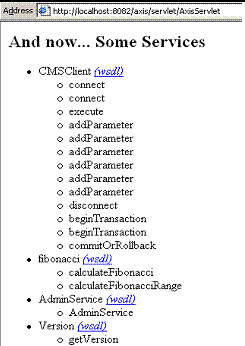
Figure 4 Deployed web services
If you wish to undeploy a web service, create file undeploy.wsdd:
<undeployment xmlns="http://xml.apache.org/axis/wsdd/"> <service name="MyService"/> |
Use adminclient again to undeploy the service:
adminclient undeploy.wsdd
Axis tools
Axis comes with a set of useful tools. To use them you have to set the appropriate classpath:
|
@echo off |
Variable AXIS sets the location of Axis .jar files. Provide your own paths for variables AXIS and TOMCAT. You will also need an XML parser if you have a JDK version less than 1.4.
We shall describe four of the tools that come with axis in order to compile and check our application. For our convenience, we shall create respective .bat or .sh files of the commands.
AdminClient tool can be used to deploy, undeploy and/or display a directory with the available web services. It’s convenient to create file adminclient.bat with the following command (use $1 instead of %1 in Linux) :
java org.apache.axis.client.AdminClient %1
As we already saw, this tool accepts a .wsdd file as its parameter.
java2wsdl tool can produce a .wsdl file from a java interface. File java2wsdl.bat contains the following command:
java org.apache.axis.wsdl.Java2WSDL -o %1 -l%2 %3
where:
- -o produces the .wsdl file name
- -l sets the address of the web service
An example of use is:
java2wsdl.bat my.wsdl "http://localhost:8080/axis/MyService" mypath.MyService
Respectively, wsdl2java tool produces the java code for both the client and the server of the web service. It has the following form (wsdl2java.bat):
java org.apache.axis.wsdl.WSDL2Java %1
and it accepts the URL of a WSDL file as a parameter.
Finally, tcpmon tool is used mostly for debugging purposes in order to view the HTTP communication between client and server (tcpmon.bat):
java -cp axis.jar org.apache.axis.utils.tcpmon %1 %2 %3
and it has the form:
java org.apache.axis.utils.tcpmon [listenPort targetHost targetPort]
The idea behind tcpmon is that it is located between the client program and the server and listens to the communication between them. Without tcpmon the stream of the communication is like Figure 6 (α), where the server listens to port 8080:
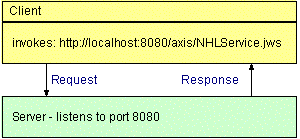
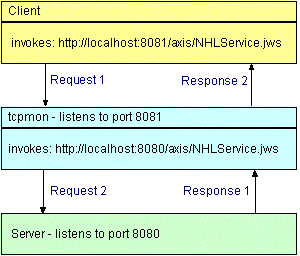
Figure 5 Communication (a) without tcpmon (b) with tcpmon
tcpmon listens to a specific port and redirects it to a number of ports. Hence, we simply need to modify our client program to talk to another port, e.g. 8081 and let tcpmon to listen to it. When it receives something, it presents it to a window and sends it to another port of our choice, e.g. Tomcat’s 8080 port.
To start TCP Monitor, type:
tcpmon.bat 8081 localhost 8080
to load the screen of figure 6.
Modify client program to listen to port 8081, execute it and watch the output of tcpmon.
A similar tool is SOAPMonitor which allows you to watch SOAP messages used to call web services as well as message responses. You can call it by typing the url: http://localhost:8080/axis/SOAPMonitor after you have read axis Installation guide to activate it.
In this article we gave a detailed introduction to web services. A web service is nothing more than a method call that uses XML. The communication is done via XML files, SOAP or XML-RPC, so web services are platform independent. A web service is described in another XML document, the WSDL. We also saw how easy it is to deploy a web service with Apache Axis. Finally, we saw some tools that come with Apache Axis and can make our life easier for the deployment and debugging of web services.
There are enough topics we didn’t cover, like security, how to embed web services inside J2EE applications etc. and for that reason the interested reader is incited to check the references for more information.
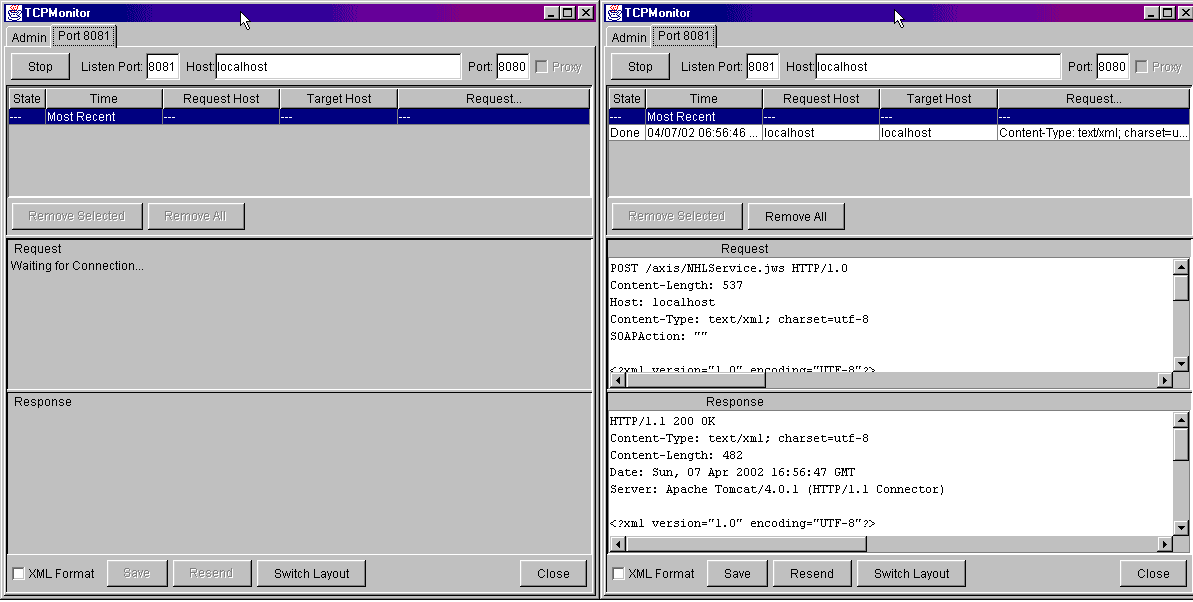
Figure 6 TCPMonitor or tcpmon
* To use Google web services you must register with http://www.google.com/apis/.
- Apache Axis, http://ws.apache.org/axis/.
- Apache Axis 2, http://ws.apache.org/axis2/
- Almaer, D. (2002), "Creating Web Services with Apache Axis”, http://www.onjava.com/lpt/a/1578.
- Boubez, T. et. al. (2001), Building Web Services with Java: Making Sense of XML, SOAP, WSDL and UDDI, Sams.
- Cerami, E. (2002a), “Top Ten FAQs for Web Services”, O'Reilly, http://www.oreillynet.com/pub/a/Webservices/2002/02/12/Webservicefaqs.html
- Cerami, E. (2002b), Web Services Essentials, O' Reilly.
- Hansen, K. H. (a), “Web Services with Axis”, http://javaboutique.internet.com/tutorials/Axis/index.html.
- Hansen, K. H. (b), “Using Apache Axis version 1 to build Web Services”, http://javaboutique.internet.com/tutorials/Axis2/index.html.
- Modi, T. (2002), “Axis: The next generation of Apache SOAP”, http://www.javaworld.com/javaworld/jw-01-2002/jw-0125-axis_p.html.
- Svoboda, Z. (2001), Web-Services series of articles, http://www.theserverside.com/tt/articles/article.tss?l=Systinet-web-services-part-1
Creator: John N. Kostaras - email[email protected]
Last modification: 15 August 2006
URL: http://www.geocities.com/jnkjavaconnection/webservices.html
URL: http://www.ergoway.gr/jkost/jnkjavaconnection/webservices.html