| Joshua's Java And HP Calculator Site |
|---|
| Home | Calculators | Notemaker (new) |
Java | Links | Contact |
| HPGEdit |
|
| FAQs |
|
| Requirements |
|
| Download |
|
| Changes |
|
| Running |
|
| Using |
|
| Compatibility |
|
| Bugs and Crashes |
|
| Related |
|
| NoteMaker |
|
| HPGCalc Font |
|
| How Do I Get Java? |
|
| Calculators | |
| Matt
Grosvenor's ADK 2.0 Site |
|
| Links |
|
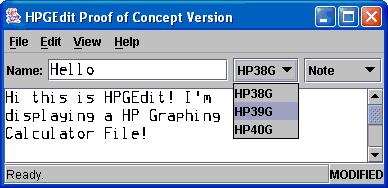
HPGEdit
HPGEdit is my attempt at replacing the
now-ancient and limited Aplet Development Kit released by
Hewlett
Packard. HPGEdit is a Java-based (therefore multi-platform) editor for HP38/39/40G
notes and programs only.
UPDATED! News on ADK project
Plans are underway to recreate the ADK in a new up-to-date form.
More information as it becomes clear, check out Matt Grosvenor's web site for more information.
As of 14 February 2003, HPGEdit is no longer being maintained.
As of 23 November 2003, HPGEdit has been superseded by NoteMaker, also available here.
Preview Version 2, 31 October 2002
Description of Options:
The keyboard can be used to control most of HPGEdit. The menu options section gives the keyboard shortcuts for the most common commands, which are similar to most other Windows-style programs. You can also use Alt + underlined letter to access the menus. Again, the underlined letter for most options is given above.
UPDATED! News on ADK project
Plans are underway to recreate the ADK in a new up-to-date form.
More information as it becomes clear, check out Matt Grosvenor's web site for more information.
As of 14 February 2003, HPGEdit is no longer being maintained.
As of 23 November 2003, HPGEdit has been superseded by NoteMaker, also available here.
Frequently Asked Questions
- How do I check my Java version?
Follow this guide to check your Java version. - How do I get Java?
The quick answer is to go to http://java.sun.com/getjava/download.html and follow the instructions. Otherwise follow this guide I have written.
- What do I need to use this program?
See Requirements below. - Why can't I open
aplets/e-lessons/directories/list/matrices...?
I don't currently allow opening of these files because I don't know how to read them. Any help would be appreciated and credited. I know how to read directories, but reading these is less important. - Why is the program slow? Why does it crash?
HPGEdit is a Java program, which can make it slow on some systems. It is also currently only a PREVIEW release and will contain bugs. - When will a full safe version be released?
I can't say, definitely some time in 2003. The more help I get, the quicker it will be finished. Plus, this is my first major Java program - so I'm still learning. - I seem to remember the old version having it's own font.
Does yours?
The current version of HPGEdit does not come with a font, and no longer needs a specific font. The calculator's character set is mapped into Unicode when read and converted back when saved. Therefore you can use any Unicode font with HPGEdit. - I still want a font though!
OK, I have an experimental font (untested) for various operating systems which should be recognised by HPGEdit.
Requirements
HPGEdit is a Java program, therefore your system must support Java.- A compatible Java Runtime Environment meeting Java2 version
1.4.0 or higher.
Download a compatible JRE for your operating system from java.sun.com - Supported operating systems include Windows 98 or later, Linux and Macintosh (untested)
Download
Download HPGEdit now!NOTE: The current version of HPGEdit is a PREVIEW version only and may contain serious bugs which have the ability to destroy data! Make sure you backup your data and accept these risks before you download this software.
Download NowPreview Version 2, 31 October 2002
Changes
From Version 1 to Version 2:
- Fixed Special Characters - it was not displaying all of the special characters in the correct order.
- Fixed Font dialog box - it was very hard to use if you tried to change the font more than once.
- Change font mapping of X Bar/Mean character (I couldn't
find it Unicode) - it's now mapped to Greek letter Chi.
Running HPGEdit
HPGEdit currently requires no installation.
Once you have downloaded the jar file above follow the instructions
below.
Windows
HPGEdit is not supported on other operating systems. Follow your Java runtime's instructions for running applications from JAR files to attempt to run HPGEdit. Report your success or failure here.
Windows
- Open up a Command Prompt window by clicking Start|Programs|Accessories|Command Prompt or MS-DOS Prompt (depending on your version of Windows).
- At the prompt which appears: eg, C:\WINDOWS> change to the folder that you downloaded HPGEdit to.
- Type java -jar HPGEdit-Preview.jar and press Enter.
- Wait a few moments and HPGEdit should appear, if any errors appear, check your Java installation.
- Open up a Console window (you must be in X (read: KDE or GNOME) to run HPGEdit.
- Change to the directory you downloaded HPGEdit to.
- Type java -jar HPGEdit-Preview.jar and press Enter.
- Wait a few moments and HPGEdit should appear, if any errors appear, check your PATH variable and make sure Java is installed correctly.
HPGEdit is not supported on other operating systems. Follow your Java runtime's instructions for running applications from JAR files to attempt to run HPGEdit. Report your success or failure here.
Using HPGEdit
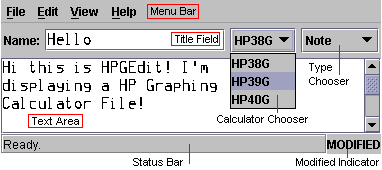
HPGEdit uses an interface similar to most other programs today. Simply point and click!Description of Options:
- Menu Bar: The menu bar provides all of the important options, such as inserting special characters, opening and saving files. The menu options are explained below.
- Title Field: The title of the current calculator object appears here, or 'Untitled' for a new object. Click in this box to change the title. You are limited to 20 characters.
- Calculator Chooser: Choose the calculator that this file is designed for in this box. Note that currently HP39G operates identically to HP40G.
- Type Chooser: Select either note or program. This determines whether or not the file appears in the Note or Program Catalog on the calculator.
- Text Area: The main text of the note or program appears here. Just type!
- Status Bar: Status messages will appear here.
- Modified Indicator: The modified indicator notifies that you have changed the file since you last saved it. This indicator appears as shown (bold, black) when the file has been modified and light grey when the file is unmodified.
- File: The File menu contains all of the file management options.
- New (Ctrl-N): Creates a new file, asking you to save the current file if modified.
- Open... (Ctrl-O): Opens a HP calculator file. Select the file you want to open from the file chooser that appears.
- Save (Ctrl-S): Saves the current file. If it has yet to be given a name, you will be asked to provide one.
- Save As...: Saves the current file to a new name.
- Exit (Ctrl-X): Exits HPGEdit. Asks you to
save the current file if necessary.
- Edit: The Edit menu contains options relating to editing the document.
- Insert Characters... (Ctrl-I):
Brings
up a window from which you can choose characters to insert into the
document. Simply click the characters you want and then click OK.
- View: The View menu contains options relating to how you view the document.
- Font... (Ctrl-F): Change the font
that HPGEdit uses to display calculator files. Select the appropriate
font, style and size and click OK.
- Help: The Help menu contains help-related options.
- About... (F1): Displays information
about HPGEdit.
The keyboard can be used to control most of HPGEdit. The menu options section gives the keyboard shortcuts for the most common commands, which are similar to most other Windows-style programs. You can also use Alt + underlined letter to access the menus. Again, the underlined letter for most options is given above.